Changelog
What's new
Every change we ship to Pointless, in plain words. Newest first.
November 18, 2026
Your name opens one menu
For shoppers
The round lifebuoy at the bottom of the sidebar is now your name, and it opens everything in one place.
- The bottom of the sidebar now shows your initial and name. Tap it for Account, Appearance, Help, What's new and Sign out.
- Appearance holds Light, Dim, Dark and System, so the sun button beside the lifebuoy is gone.
- On a phone, your name sits at the bottom of Settings and opens the same list in the same order. The separate Help row is gone.
- Keyboard shortcuts, which was greyed out and went nowhere, is no longer listed.
Carry on a round, or start it over
For shoppers
A round you leave halfway now waits for you: Home shows what you already chose and a Carry on button, even after a reload or on another device.
- Start over sits next to Undo last inside the round. It clears what you chose; price alerts you already set stay on.
- Your rounds on You now shows each round's products. Tap one to see its receipt.
Connecting your assistant takes two steps
For shoppers
The setup window for Claude Code, Muse and Instinct is now one column with each app's own logo and two numbered steps.
- Pick your assistant by its real logo, then send it the message (or run the command) and paste your key when it asks.
- Your key is explained once, right under it, and Make a new key sits in that line.
Where to? and a kinder used-link page
For shoppers · For brands · team
One email that opens two Pointless accounts now asks where to go, and an old sign-in link shows your email ready for a new code.
- If your email opens a shopper account and a brand (or Admin and a brand), signing in shows Where to? with one tap for each.
- Opening a sign-in link that was already used says That link was used, with your email filled in when you asked on the same device, and one tap for a new code.
One sign-in page for everyone
For shoppers · For brands · team
Shoppers, brands and the Pointless team now all sign in on one page, Welcome back, with a small Bloom that waits while your code is on its way.
- Type your email and tap Email me a code. We work out whether it is a shopper, brand or team email and send the right code.
- The brand sign-in address now opens the same page, set for brands.
- New here? The page links to Connect Amazon and Set up your brand.
Coming back takes you straight to your page
For shoppers · For brands
Opening Pointless again now takes you where you left off, and there's a sign-in link on the first page for when you're signed out.
- Signed in, opening the Pointless address goes straight to your Home instead of asking you to connect Amazon again.
- Signed out, the first page has "Already on Pointless? Sign in" under Connect Amazon.
- A brand's work email typed on the shopper sign-in opens that brand's dashboard instead of making a new, empty shopper account.
- An old brand sign-in link now opens the brand sign-in, not the shopper one.
Your name on Who you are fits you better
For shoppers
Your name now comes from the biggest chapter where you buy well above most shoppers, not just your biggest one. If nothing stands out that far, it's the chapter that is most you, so everyone gets a real name.
- When one kind of thing leads your chapter, you get a sharper name, like Mood Lighter for lamps and lights or Sound Seeker for headphones.
- Names and the season chip stay playful in Plain mode too.
- Things for a child, like a girls' backpack or kids' pajamas, now count as Kid Wrangler whatever shelf Amazon put them on.
- The same goes for pets, babies and cars: a dog bed is Dog Spoiler, a dash cam is Garage Tinkerer, and an adult coloring book is Craft Starter, not Kid Wrangler.
- A line under your name says how many shoppers share it, like "About 1 in 8 shoppers is a Snack Stasher."
- Seasonal chapters like Party Host show as a small "This fall" chip and never become your name.
November 17, 2026
Each card in a round says why it is there
For shoppers
When we catch something on a thing you buy again, its card in your round now says what changed in your own numbers, such as "16 oz to 14 oz since Sep 21" or "$44.84 to $38.99 today". Our pick is the cheapest option today and is outlined, not filled, until you choose it.
- From Amazon and Amazon Warehouse are choices on the card when they cost less.
- Wait and Stock up show a small chart: where today's price sits between the low and what you paid, and when it dipped before.
- Subscriptions, do-overs and brand offers use the same rows, so every card works the same way.
November 16, 2026
The Personas page is now called Shopper types
For brands
The groups of buyers in your console, such as Routine and Drifting, now go by the plainer name Shopper types. The numbers and the groups did not change.
- Make an offer from a Shopper types card works as before.
- Older entries below still say Personas. It is the same page.
The Brand story page is now called Your brands
For shoppers
The page of brands you keep coming back to, with your switches and who owns them, now has the plainer name Your brands. Nothing on the page changed.
- Older entries below still say Brand story. It is the same page.
Offers now say where they come from
For shoppers
Each offer on For you names its source: From a brand in our network, or Found by us. Offers with a stated value also say what they add to your savings.
- A brand’s payment never changes which offers we show or their order.
- Savings are shown as about, and as one-time, never as a yearly figure.
Offer emails are on by default
For shoppers
Pointless can email you offers from brands you already buy. Turn off New offers in Settings or unsubscribe from any offer email.
- If you already turned off offer emails, your choice still applies.
More price drops, with a clear reason
For shoppers
Price drops now check what you last paid first, then your average paid price. Every deal stays below your average and tells you which comparison qualified it.
- Two separate purchases are still required; one usable purchase price is enough.
Two new ways to pay less: Other color and Flash deal
For shoppers
Pay less now spots the same product in a cheaper color and live Amazon Lightning Deals on things you usually buy.
- Other color: the same size and style in another color that costs less, counted as a yearly saving.
- Flash deal: a live Lightning Deal on your usual product. It saves once, so it stays out of the yearly figure. Amazon limits it to one pack: check out from the cart, not with 1-Click.
November 14, 2026
Your shopping story, in your welcome email
For shoppers
Your first welcome now looks like Home: your Who you are title, story and product mosaic, followed by price drops on things you buy.
- Deal cards show the current price, your average paid price and the savings.
- Welcome and offer emails still follow your email choices.
Price drops compare with your average paid
For shoppers
Personal deal savings now compare the current price with your average paid for the same item or pack, weighted by how many you bought.
- Savings must be at least $2. Drops under $5 need 20% savings; drops under $10 need 10%. A $10 saving qualifies at any percentage.
- Products you bought in two eligible orders can qualify without a catalog-wide order minimum.
November 13, 2026
Clearer offer emails
For shoppers
Offer emails use an explicit white background, darker supporting text and clearer card borders.
- Some email apps may still apply their own dark-mode colors.
Price drops show up in For you
For shoppers
Approved price drops on products you buy now appear alongside your other offers, with the current price and savings against what you last paid.
- Offers stay in the app after we email them to you, while the approved price is current.
- View offer shows the details and a link to shop on Amazon.
Black Friday offers join your offers
For shoppers
Selected Black Friday offers from brands you bought now appear with your other offers. Each says whether you shop on Amazon or the brand’s site.
- View offer shows the terms and where the link opens.
- These are brand matches; they may cover different products from the ones you bought.
November 12, 2026
Your first orders fill the screen from the first picture
For shoppers
While we read your Amazon orders, the first product photo fills the whole wall and the wall splits as more arrive, so it never looks half empty. Home opens after the first page of orders instead of waiting for all of them.
- The same photos carry over into Home and settle into place there.
- Nothing extra is asked of Amazon.
Refresh personal-deal prices using the existing Keepa connection
team
Refresh now is available when the server already has its Keepa key. Scheduling stays off by default, and approval and sending stay manual.
Personal deal price checks are prepared for activation
team
The team can use automated product selection and Keepa price checks once API access and cost are confirmed. Approval and email sending stay manual.
- Products need three or more aggregate orders; gift-card items are excluded. Shopper matches still need two eligible orders.
- Price drops can surface new matches. Manual CSV products and unchanged decisions are preserved.
- The refresh and daily schedule switches remain off pending activation.
Who you are now says how you buy
For shoppers
The name on Home and on Who you are now starts with one word for how you buy, like Devoted Home Cook or Considered Snack Stasher, with one line under it saying why, counted from your own orders.
- Devoted means your top chapter holds a lot of what you keep; All-round means your buying spreads wide; Everyday and Considered say how often you order; Steady is everyone in between.
- Plain mode in Settings keeps the plain chapter name with no word.
- Only you see it.
Every email starts off
For shoppers
Pointless sends you no email until you turn one on in Email and reports. Setting a price alert turns on Alerts, because it asks us to email you.
- Sign-in codes and links still arrive when you ask for them.
See your products while your orders load
For shoppers
While we read your Amazon orders, the screen now shows your products as a big wall of photos in the same shape as Home, instead of a few lines of text and a tiny grid. Each product lands as a dot, then its photo appears.
- On a computer the wall sits beside the question, filling the screen's height.
- The So far notes take turns on one line above the wall.
Ways to save on what you are about to run out of
For shoppers
Habits has a new page, Ways to save. For each thing you are due to buy again in the next 30 days it puts buying now, waiting for a lower price and Subscribe & Save side by side, each against what you last paid.
- Best marks the cheapest way only when it is a real saving against the usual price.
- You can set a price alert on an item from the same row.
- Only you see this page.
Prices are what you'd pay at checkout, and fresher
For shoppers · For brands
Amazon prices now use the Buy Box price with shipping, the price you'd actually pay, instead of the cheapest offer from any seller. They also refresh through the day instead of once a night, so more of your items carry today's price.
- Cheaper now, Low and Wait are judged on the Buy Box price and its last 90 days.
- An item with no Buy Box falls back to its lowest new offer.
What it costs now is part of Price check
For shoppers
Everything about what you pay now is on one page, Price check, in Activity.
- You could pay less and its price alerts sit under Cost more.
- Cheaper since you bought it and Smaller pack sit under Cost less.
- Old links, emails and Home notes that opened What it costs now open Price check.
Price check replaces Your inflation
For shoppers
Price check shows what you pay now for the things you buy again: the first price you paid against the latest, for anything you bought twice at least two months apart.
- Cost more comes first, each with one way to pay less or a thing to check.
- Cost less, then the pictures of everything that held its price.
- Your own inflation against the official number is now one line, shown when you bought enough of the same things in both years.
- Until you have bought something twice, Price check isn't in the menu.
An offer invite fits on one screen
For shoppers
An invite that holds an offer is now the brand, the offer and the Claim button, with nothing to scroll past. Tap the offer to see the three steps and its terms.
- A message shows only when the brand wrote one.
Ask a brand you don't buy yet for a first offer
For shoppers · For brands
For you suggests up to three brands shoppers like you buy. Tap Ask for an offer and that brand sees one more shopper who wants one: a count, never who, and only once three or more have asked.
- The brand moves to your wall under Asked. Tap it there to take the ask back.
- Brands see these asks as their own count on Shoppers, beside the shoppers who already buy them.
- An offer a brand sends to shoppers who asked reaches you too.
Settings is a full page on a computer
For shoppers
On a computer, Settings now opens as a page beside the menu, not a panel over what you were looking at. On a phone it still slides up from the bottom.
- Every switch and link is the same in both places.
Brand suggestions say why they are here
For shoppers
Next for you is now called Brands shoppers like you buy. Each brand says in one sentence why it is suggested, and the button is Save instead of Watch.
- Save keeps a brand on your wall under Saved so you can find it again.
- Brands never see this list.
Ask the brands you buy for an offer in one tap
For shoppers
Home now lists up to three brands you buy with something you bought from each. Ask one, or tap Ask all 3 to ask them together. Each brand sees one more shopper who wants an offer: a count, never your name. See who you are is now a quiet link under your chapters.
- Ask all 3 asks every brand on the list at once.
- All brands you buy opens the full list on For you.
Sort, filter and export the product list
team
Data → Products now sorts by shoppers, orders or last bought, filters by minimum counts, and exports every matching row to CSV with ASIN and barcode identifiers.
Sale prices are checked against the usual price
For shoppers · For brands
During sale weeks like Black Friday, Coming up now says how today's price compares with the item's usual price: the price it sat at most of the last 90 days. A price counts as a real deal only at 20% or $5 under that and no higher than its lowest price of the last 30 days, so a price raised just before the sale doesn't pass as a bargain.
- Each routine says how much cheaper or dearer than usual it is today.
- Brands: Price watch judges your last sale event by the same rule.
Say where a thing belongs on Who you are
For shoppers
Tap a thing on your wall and it asks whether it belongs in its chapter. Say Fits, move it to another chapter of yours, or say it's not yours.
- A move shows on every page that counts chapters, for you only.
- Undo takes an answer back.
- Your answers help us fix the rule that put a thing in the wrong place.
Home opens with the offer from your invite
For shoppers
If a brand's invite brought you in with an offer, the offer is yours as soon as your account is made, and Home opens with its code, a Copy button and a link to shop.
- It shows one line from your orders under the code.
Ask the brands you buy for offers right after your first read
For shoppers
When your orders are in, Pointless lists the brands you buy most, with the top three ticked, and one tap asks them all for an offer. Brands see a count, never your name.
- The first question is shorter and starts with offers: What do you want first?
- Not now skips it, and you can still ask any brand from For you.
Another try at your Amazon password takes seconds
For shoppers
When Amazon says the password is wrong, it keeps the sign-in open, so your next try goes straight in on the same screen instead of starting over.
- The screen shows where your phone or browser keeps your saved Amazon password.
A wrong Amazon password is easier to fix
For shoppers
After a wrong password the sign-in keeps what you typed so you can check it with Show, and the reset link is a button from the first miss.
- The message says your offer is still held.
An offer invite says what claiming it takes
For shoppers
An invite that holds an offer now lists the three steps to claim it, and its button names the offer and opens the Amazon sign-in straight away.
- You can tap Show to see the Amazon password you typed.
- Invites with an offer no longer have Look around first.
November 11, 2026
Routines says what the next 30 days will cost
For shoppers
Your routines now lead with about what the next 30 days will cost, and list routines as Overdue, Next 30 days and Later. Each routine you buy by hand shows what Subscribe & Save would save you, so Habits has two pages along the top instead of four.
- Things you bought only twice are listed under Guesses, open, each marked Guess.
- What you stopped buying and what is hidden from brands are one line at the bottom.
- Subscriptions is along the top of Habits when Amazon ships you something or a card renews. Coming up opens from All your reports on Home.
Hidden items tuck away on Your orders
For shoppers
An order's hidden items now fold into one quiet line, such as "2 hidden items", instead of a row each with a line through it. Tap Show to open them and bring one back.
- An order with every item hidden is its date, its total and that one line.
Your monthly recap signs off with who you were
For shoppers
The recap now ends on a dark tile with the chapter that led your month, its line and how many of its things you bought that month.
- Plain mode leaves it off, and so does a month with fewer than five orders behind it.
Your first Home sums you up in one line
For shoppers
Right after your first read, a dark tile under your wall says who you are in one playful line. With fewer than five orders, Home says "That's a start." and waits for more before naming any chapters.
- Plain mode skips the playful line.
The order wall fills when you connect again
For shoppers
Connecting Amazon again within a week only fills in order details, and the wall sat empty while it did. It now shows the products we already have straight away.
- Nothing extra is asked of Amazon: the pictures come from your saved orders.
Next for you
For shoppers
For you now suggests up to three brands you don't buy yet, each next to one of your chapters, with why in your own numbers.
- Watch keeps a brand on your wall; tap it there to stop.
- Not for me means that brand never comes back.
- A brand is only suggested when enough members buy it, and nothing about you goes to it.
Activity and Habits open on a summary
For shoppers
In the new look on a phone, Activity and Habits now open on a short summary, and each report opens from it, instead of a row of page names that ran off the edge of the screen.
- Activity's summary shows Worth a look, the Who was this for? question, then one row per report with its own number.
- Habits' summary starts with the routine due soonest.
- A report has a back arrow to its summary, and your browser's Back does the same.
- On a computer, the pages are still named along the top.
Reports made of your products
For shoppers
In the new look, Home's reports about things you buy are tiles: the report's name, three of its products and one count, the same one its page shows.
- Your routines, Coming up, What didn't stick and What went back are tiles, two across on a phone.
- Things that went back are greyed out. Reports that are only an amount stay rows.
Tell For you who you are
For shoppers
A few quick questions in For you. Say what fits you and the brands that fit move up so you can ask them first.
- Each question shows the kept items and orders that back it up.
- That's me moves those brands into Picked for what you said, each with its own Ask.
- Not really and Skip work the same as on Who you are.
November 12, 2026
For you is three short lists
For shoppers
For you now shows Yours, Asked and Ask next, each with one short line that says what it is.
- Your offers come first, with one button each.
- Asked shows each brand you asked and where it stands, with Take back.
- Ask next lists the brands you buy, with Ask all 3 and All brands.
- The day ring, Along the way and the brand wall are gone from this tab.
November 11, 2026
For you shows where every ask stands
For shoppers
For you now opens on what is yours and who is still thinking it over, instead of a rewards list.
- Your turn has every offer you can claim, in one place.
- Their turn lists each brand you asked, with three steps: asked, in their count, said yes.
- A brand that stays quiet comes with another brand you buy to ask.
- Claimed rewards sit in one line at the bottom.
Your orders follow you into Home
For shoppers
When the wall of your orders is full, Home opens right away and the same pictures slide into place there, while the rest of your orders keep loading.
- Home shows your first orders at once, with a count that grows.
- When your chapter is ready, its things move to the front.
- If a question is on screen, Home waits for your answer or Skip.
Where you stand, on For you
For shoppers
For you now opens with which day of Pointless it is for you, counted from your first read, how many brands you asked and how many have an offer in, and how many questions about you are answered, like 3 of 5.
- Each brand on your wall says Not asked, Asked with the day, or Offer in.
- Along the way lists your read, your asks and your claims, each with its day.
- After your first month, a brand that said yes leads the tab.
One stop before Amazon
For shoppers
In the new look, every link that leaves for Amazon now opens the same short sheet first: what we can't do there, the facts we have, then Continue or Stay.
- Orders, returns, repeat buys, prices, subscriptions, Prime, a brand's card and deals all use it.
- It only shows facts that row has, so some sheets are short.
- Hold Cmd or Ctrl as you tap to open Amazon straight away.
Money worth a look, never added up
For shoppers
Activity now opens on Worth a look: money you can ask for now and money you could keep each year, side by side and never added together.
- To ask for now counts price drops on things that can still go back, and refunds still on their way.
- A year, if you slow down counts subscriptions that arrive before you run out.
- Tap a figure to see the rows behind it.
- A price drop shows what you paid and what it costs now, and the day it dropped when the price history shows one.
- Open on Amazon says first what Pointless can't do there.
- Tap a month's bar to see that month's total, top categories and brands.
More say on each order
For shoppers
Your orders now let you leave one order out of a brand's counts, say who an order was for, and see what happens before Amazon opens.
- Count this for a brand, in an order's menu, leaves that order out of the brand's counts. Your own pages don't change.
- When we can't tell who an order was for, a card on Your orders asks about one at a time: For me or Someone else.
- An answer there also counts on Sharpen your match, so you're never asked twice.
- Before Amazon opens, a sheet shows the order's facts and what we can't do there. Continue or Stay.
What we've found, while you wait
For shoppers
While your orders are read, a short So far list under the count shows what's turned up: the kind of thing you buy most, the brand that keeps showing up, and the chapter that's forming.
- Every count is real, counted in products like the count above it, and grows as orders arrive.
- If Home needs a moment more at the end, the screen says That's everything. for up to two seconds.
Your first orders show up faster
For shoppers
The wall you see while your Amazon orders load now fills with pictures of the things you bought as your order list is read, instead of stopping at five.
- Pictures come from your order list, page by page.
- The rest of your orders keep loading in the background.
November 10, 2026
Claimed, with your code
For shoppers
Claiming an offer now flips its row to Claimed, with your code and Copy, and says Claimed. at the bottom of the screen.
- The code is the one we saved with your claim, the same on Home and For you.
- An offer with no code shows the day you claimed it.
- If a claim doesn't save, the row tells you, and nothing changes.
How often, for every chapter
For shoppers
Who you are now has a card for each chapter with how often you buy it: a dot for each day you ordered in the last 13 weeks, and how your last month compares with your usual one. Home shows the same under each chapter.
- Dots from the last 30 days are in the chapter's color.
- Home also says how many of the questions about you are answered, like 3 of 5.
The proof behind a chapter
For shoppers
Tap a chapter's card on Who you are to see what we counted: how far along the chapter is, how many items you ordered, returned and kept, and every order behind it.
- Returns are listed and marked, and never counted.
- Still me or Moved on answers right there. Moved on takes the chapter off Home too.
Answer where you tap
For shoppers
On Who you are, a chapter's reasons now open right under it, and each open question has Yes and No on its own row. The page no longer jumps back to the top.
- Tap a chapter to see why we said it, right there.
- Your top 3 brands can be picked without leaving the page.
Your first price story, counted
For shoppers
What it costs now now shows how many priced buys your closest routine has, and how many it needs before its price story lands.
- A point for each priced buy, and a ring for each one still to come.
- Three priced buys of the same routine is what a price story needs.
Offers with a code, applied for you
For shoppers
Get it on a discount now shows the code and its terms, then opens the store with the code already applied.
- Pick My first order or I've bought before to get the right code.
- The row keeps your code, with Copy, for when you check out.
- Tell us if it didn't work and we show you the other code.
One question while your orders load
For shoppers
While your orders load, one optional question asks what Pointless should help with first, under a wall of the things you bought.
- One tap, or Skip. Home then starts with your pick.
- If you already answered, it isn't asked again.
- Be a shopper in the demo asks it too.
Offers from brands that said yes
For shoppers · For brands
Offers on Home and For you are simpler, and a brand you asked can answer with an offer.
- Offers Pointless picks for every member come first.
- When a brand you asked on the pitch board makes you an offer, its row says it said yes.
- Until then you see No offers yet, with how many brands you asked.
- Brands see how many shoppers asked and can tap Make them an offer.
Shoppers and brands each get their own sign-in
For shoppers · For brands
The sign-in page no longer asks whether you're a shopper or a brand.
- Shoppers sign in at /login.
- Brands sign in at /brands/login with their work email. An email with no brand account is told so.
- The brand pages have the new look, and the inbox step has one-tap buttons for Gmail and Outlook.
Sign out from anywhere
For shoppers
Sign out now sits in the app itself, not only on the Account page.
- On a phone it's at the bottom of Settings, next to Account.
- On a computer it's in the help menu at the bottom of the sidebar.
- Still connecting Amazon? "Not you? Sign out" is under the button.
Sign in with a code from your email
For shoppers · For brands
The sign-in email now carries a 6-digit code as well as the link. Type it on the page where you asked and you're in, without leaving the tab.
- Handy when the email opens on your phone and you asked on your laptop.
- The link still works with one tap. Either one works once, for 15 minutes.
You stay signed in
For shoppers · For brands
Come back any time in six months and you're still in. No more signing in again every 30 days.
- The link in your sign-in email now takes you to the page you were headed to, such as an invite or your recap.
- Didn't get the email? The "Check your email" card can send it again.
- On a phone the email box opens the email keyboard.
Home tells it in your chapters
For shoppers
If you picked what Pointless should help with first, Home now sorts what it shows into your chapters.
- The headline names your chapters, the month card shows how many things went to each, and Pay less groups the things you buy often by chapter.
- Brands you buy regularly and offers carry a small chapter tag, and a Your chapters card opens the story section. Skip the question and Home stays as it was.
Home starts with what you asked for
For shoppers
If you picked what Pointless should help with first, Home now opens on it.
- A short line names your pick, and the headline uses your own numbers, like how many things you buy often could cost less.
- The section that answers it moves to the top, with your leading chapter and its newest things under the headline. Skip the question and Home stays as it was.
Come back with your email
For shoppers
After you connect Amazon, you can add your email once, so next time you sign in with a link instead of Amazon.
- On the last screen, tap Email me a code and type the 6-digit code we send. It's optional, and Skip and see your data always works.
- Later, Sign in on the login page can email you a link that opens the same account on any device.
Pick what Pointless helps with first
For shoppers
While your orders load, one optional question asks what Pointless should help with first.
- Tap one of four answers, like Pay less on things I buy often. Tap another any time before you leave the page to change it.
- Home will soon start with your pick. Skip it and nothing changes.
November 9, 2026
Several invite links, each with its own look
For brands
On Invite setup you can now save more than one link, each with its own name, message and page look, and see how each one does.
- New link saves another link with a name you pick, like Protecht customers. It starts from your current message and look.
- Choose a link to edit its message, colors, headline, preview and test email without touching your other links.
- Each link shows how many opened, tapped and connected, in groups of 3 or more. Your totals add up all your links, and a shopper counts once.
- Your Default link keeps the same address and look, so anything you already sent still works.
Run a brand? A door on Home
For shoppers
If you sell things too, Home now has a small card that opens the brand side of Pointless.
- See the brand experience opens a sample brand console in a new tab.
- Not me, or the x, puts the card away for good. Pointless for brands stays under More.
November 8, 2026
A calmer Amazon sign-in when it stops
For shoppers
If a mistyped email, password or code stops your Amazon sign-in, you fix it on the same screen. If Amazon is the problem, you get a short page that says so and offers to email you once.
- A wrong email or password keeps what you typed and says what to check, right under the fields.
- A wrong code keeps you on the code screen, with a Send a new code button that asks Amazon for another one, so you don't type your password again.
- When Amazon didn't open, wants a short break, or a code timed out, the page says whose side it was and what to do next.
- You can ask for one email when a new try should work. It is the only email we send about it.
- Sign in again takes you back to the sign-in screen with your email filled in. Your password is never kept.
A page about your brand, before you sign up
For brands
The Pointless team can now send any brand a short public page on what connected shoppers buy from it and in its category, with a Claim button that lands on the sign-up with the name filled in.
- Every number on the page is a count across the group size or more shoppers. No one is named, and nothing about one order is shown.
- The page is a snapshot from the day it was made. Claiming the brand gives the live console, with the pages the snapshot leaves out.
November 7, 2026
See a brand on Amazon
For brands · For shoppers
Every brand card now has a See on Amazon link. It opens the brand's own Amazon store when we know it, or an Amazon search for the name.
- Hover a brand's logo or name on a computer, or tap it on a phone, to open its card.
- The link opens in a new tab, so your page stays where it was.
Shopper counts agree
For brands
The Overview and Shoppers now show the same number of shoppers who buy you, and say when two numbers count different things.
- The line under the Overview headline names the category and the past year, and shows the all-category count in brackets.
- The month chart's newest bar starts on the 1st early in a month, so it matches the headline.
- The product cards say "so far" while the month is still going.
November 6, 2026
Channels lines up
For brands
Every list on Channels now uses one row shape, so the bars line up, and your own channels come first.
- Tiles sit clear of the dividers and names no longer cut off early.
- Your own channels lead, then every channel these shoppers use, then share by brand.
- On a phone each row is two lines, with no sideways scrolling.
Home's total says where it went
For shoppers
Under the total on Home and Your year, a line says what a usual month looks like and where most of it went.
- The month shows your usual month. 3 and 6 months show about how much a month.
- One thing to do links to easy savings in Left on the table, when there are at least $10 a year.
Rewards say what happens after you claim
For shoppers · For brands
After you open a reward, the row says Opened with the date, and that the brand confirms it once you use it.
- The button on an opened reward now says Open again.
- When a brand confirms a code, the reward moves from Opened to Claimed. This now works for every offer.
- Sample rewards on test and demo sites carry an Example label. The live site only shows rewards from confirmed brands.
Fewer wrong guesses for kids and gifts
For shoppers
Kids and gifts now need real signs, and one tap moves a wrong group back to you.
- Toys and games alone no longer make a kids group.
- A title that says gift no longer makes it a gift.
- One tap moves a whole group back to you.
November 5, 2026
Home's month card shows your last 6 months
For shoppers
Pick 6 months on the Home card and the big number, orders and monthly average switch to the six months ending with the month you picked.
- The total is after refunds, with the orders and about what you spend a month.
- When the six months before are all read, the card says how much more or less you spent.
- Days and Where it went still show the month you picked.
The Overview shows all connected shoppers until they buy you
For brands
Before three shoppers buy your brand, the month, what they reorder and what changed show numbers from all connected shoppers, and say so, instead of an empty card.
- The month shows what each connected shopper spent, how many were active, how it compares with last month, and the categories moving. See Spend trends opens the full page.
- What they reorder shows the brands all connected shoppers reorder most, with a link to Repeat.
- What changed adds the biggest category move, the brand most shoppers stopped buying and the largest switch. Your own findings stay first.
- Your own numbers come back at three buyers. The cards follow the lens, and every number needs at least three shoppers.
Bought alongside starts from your category
For brands
The page now shows what else your category's shoppers buy, so it has rows before anyone buys your brand.
- Products, sub-categories and categories bought in the same order or within 30 days, ranked by lift over all shoppers in the group.
- A switch at the top moves between Your category and Your brand. Your brand opens at 3 shoppers who buy you.
- Each row needs 3 shoppers, and one shopper can't be most of it.
Who they buy for
For brands
A new page under Your shoppers shows who your connected shoppers' items are for, and how many have pets, kids or gifts to buy.
- Bars show the share of items for themselves, a partner, kids, pets, gifts and the home, overall and for each category.
- A row of tiles counts shoppers with pets, with kids, who give gifts, and who ship to 2 or more names.
- Ages, names and birthdays are never shown. Anything under 3 shoppers is left out.
Spend trends: how your shoppers' spending moves
For brands
A new page in The market shows monthly spend, the categories going up or down, and price change by category, across all connected shoppers.
- Spend by month shows the average per shopper or the total, with orders per shopper. Every shopper counts once.
- Categories moving compares the last three whole months with the three before, and with a year ago when there is data.
- Prices shows how much the same products cost against last year, by category.
- Categories gains a 3-month change column and a share of wallet column.
- Every number needs 3 shoppers, and no shopper is ever named.
Switches and Stopped buying
For brands
Two new pages in Your shoppers show where shoppers move between brands in a category and which regular buys went quiet.
- Switches lists the brand-to-brand flows in the last 12 months, the weeks shoppers stayed on the old brand and the price gap, then who won and lost shoppers.
- Stopped buying counts regular buys that went quiet, by brand and sub-category, and how many shoppers moved to another brand compared with left it.
- Both follow the lens: all connected shoppers or only your link, in the category you pick. Every number is a count of 3 or more shoppers, and nobody is named.
Channels, Repeat and Your customers now cover all connected shoppers
For brands
These reports follow the lens. By default they count every connected shopper, so they have numbers before anyone buys your brand.
- Channels leads with channel totals and each brand's channel mix across all connected shoppers. Your own block sits under it once 3 shoppers buy you.
- Repeat opens with a table of every brand's reorder rhythm, narrowed to a category when you pick one. Your row is marked, not moved up.
- Your customers counts all connected shoppers, or only the ones from your link, in the lens category.
- Where they shop shows all bank-linked shoppers until 3 of your buyers have linked a bank.
- Top brands keeps the order the data gives and marks your brand instead of moving it up.
Personas, Price watch, Rivals, Sellers and Lookalikes lead with the category
For brands
These pages no longer wait for your own buyers. Each one opens with the category in the bar under the page title, across all connected shoppers or only the ones from your link. Your own rows sit under it.
- Personas opens with pool groups for the category: switchers, lapsed, subscribers, loyal to one brand, deal-led, new to the category and buy now and then. Your own customer groups follow once 3 connected shoppers buy your brand.
- Price watch leads with the typical price paid in the category and how many orders had a deal. It works without a Keepa key.
- Rivals lists the category's biggest brands by shoppers and repeat rate. The you-versus-rivals table follows at 3 buyers.
- Sellers shows how the category splits between Amazon, brand shops and other sellers. Who sells your brand follows at 3 buyers.
- Lookalikes shows the category's brands, with one line saying it needs 3 buyers of yours, instead of a lock.
Subscriptions, Returns and Coming up cover the whole category
For brands
These three pages now look at the category in the lens across all connected shoppers, so they fill in before anyone buys your brand.
- Subscriptions shows the category's Subscribe & Save share, how many subscribers stopped, the top subscribed brands and the cadence mix.
- Returns shows the category's return rate and its most-returned brands and products.
- Coming up is a five week reorder calendar for the category, by week and by brand, with the late and sale week lines kept.
- Your own block on each page appears once 3 shoppers buy your brand in the category. Under that the page keeps the category numbers.
- Switch the lens to From your invite to see only the shoppers who came through your invite. A new category with fewer than 3 shoppers says how many it needs.
Your Overview leads with all connected shoppers
For brands
The headline now counts every connected shopper and what they spent. Your own buyers come second.
- The headline reads like 5 connected shoppers, $1,240 across 9 categories so far.
- The line about how many of them buy your brand shows once at least 3 do. Under that it is left out.
- Cards about your own buyers say none of the connected shoppers buy you on Amazon yet, and point to Repeat and Categories.
- The setup panel leaves the Overview once the console opens. Make my link stays on Invite setup.
Brands now see totals across all connected shoppers
For shoppers · For brands
Any brand on Pointless sees totals across every connected shopper, not only the ones who buy that brand. Still never a name, never a number from fewer than 3 shoppers.
- The connect page, invite page, Privacy page and help now say so in one sentence.
- You can still hide any order, brand or category first. Hidden things count toward nothing.
- The shopper feed on a brand's Overview shows groups only. It no longer switches to one shopper per line when a brand has 25 or more shoppers.
Choose all shoppers or your link, and a category
For brands
Reports can now cover every connected shopper or only the ones who came through your invite.
- A lens bar under the page title switches between All shoppers and From your invite.
- A category menu picks the Amazon category to look at. It starts on where you sell most.
- A line shows how many items a report rests on and how many were matched to a brand.
Things you stopped buying move out of Your rhythm
For shoppers
Your rhythm now shows only what you still reorder. Things you stopped buying are on What didn't stick, under Stopped buying.
- A routine counts as stopped once it's been well past its usual gap, so a monthly vitamin drops off sooner than a twice-a-year filter.
- Stopped buying lists each one with how often you bought it and when you last did. Tap one to see every order.
- Something you switched to another brand for is there too.
- Overdue routines stay on Your rhythm, under Overdue.
Your whole console opens at 3 connected shoppers
For brands
You no longer wait for 3 shoppers who buy your brand. Once 3 shoppers have connected, every tab opens.
- Buyers, Market, Loyalty, Repeat, Rivals and the rest open as soon as 3 shoppers have connected to Pointless.
- Each number still needs 3 shoppers behind it. A card under that says what will fill it in.
- Your buyer count shows once 3 connected shoppers buy you. Until then it reads fewer than 3.
- No shopper is named, and private areas stay out.
Offers reach the group you aimed them at
For brands
An offer made from a Personas card now goes to that group, and you can time an offer to a reorder.
- An offer aimed at Drifting goes to your drifting buyers. One aimed at Routine goes to your regulars.
- Before, a Personas offer went to a wider group picked by its starting target, or as a routine pill to people who had never bought you.
- New in Who is it for: shoppers due to reorder you in the next two weeks.
- Shoppers see why they got it, such as "You're due to reorder Kiln".
See where your customers' money goes
For brands
Your shoppers now opens with the customers who connected through your invite, as one group.
- How many of your customers connected, and what they spent in your category over the past year.
- How much of that came to you, and which brands got the rest.
- Where they buy you: Amazon, your own site, or other stores.
- Each brand needs 3 of your customers behind it to get its own row. Smaller ones count in Everyone else.
Your Overview leads with your invite
For brands
Before your numbers open, the Overview now starts with one sentence about your invite and one button to copy it.
- The sentence says how many people opened your invite and how many connected.
- The line under it says how many shoppers are connected across all brands, so the two counts agree.
- Buy, Reorder, Where else and Month sales each open that part of a filled-in example in a new tab.
- One footnote replaces two. How we count holds the rest.
- The Buyers, Market and Loyalty tabs now look like your other locked pages: when each one opens, your invite link, and a gray example.
November 4, 2026
Your Amazon data upload counts orders correctly
For shoppers
Uploading the data Amazon sends you now matches what Pointless reads from your account.
- Cancelled orders no longer count as delivered.
- Two lines at the same price in one order are both counted.
- Orders placed late on the last day of a month stay in that month.
- Orders paid in another currency are left out, and the upload tells you how many.
Your reports fill in by themselves after a read
For shoppers
Once your Amazon read finishes, the reports on Home fill in on their own, with no refresh.
- Reports that already have a number show it while the read is still running.
- The grey rows no longer get stuck on Updating after the read is done.
A security page that says what we do
For shoppers · For brands
One public page lists how your orders are stored, what we never keep, and what brands can and cannot see.
- Open Security from the Help button (the lifebuoy), the More tab on a phone, or the link on the Privacy page.
- It names the providers that help us run Pointless and what each one is for.
- Anyone can read it without signing in, at joinpointless.com/security.
Point at what you mean when you share feedback
For shoppers · For brands
Share feedback now opens a small bar: point at a part of the page, or type a note, then send them together.
- Point lets you tap any part of the page and say what should change.
- Type adds a note about the whole page.
- Notes shows them before you send, with OK to reply.
- One Send files all of them with the team.
Home shows your orders and pictures while we read them
For shoppers
While your first Amazon read runs, Home shows how many orders we have found, your first product pictures and how long is left.
- A card at the top says how far along we are and that you can come back to this page later.
A quick check-in after your first read
For shoppers
Once your first read is in, Home asks how it went and whether better offers would be worth sharing with a brand.
- One card at the top of Home, shown once. Type a line, pick Yes, Maybe or No, then Send.
- Not now hides it for good.
- After you send, you can say whether a 10-minute call would be OK.
Every brand page shows what's coming
For brands
Until 3 shoppers connect, each page shows your invite link and a gray example of what it will hold.
- Every page says how far away it is and gives you the link to send, with a Copy link button.
- Under it sits a labelled example of that page, with made-up numbers, so you can see what opens.
- Brands, Categories and Channels no longer show empty headers or a loader that never finishes.
Offers in private areas, only if you say yes
For shoppers · For brands
If a brand has an offer that fits a private area, one line on Home lets you decide. Nothing is matched until you say yes.
- One line under Offers for you says there is an offer in a private area. Choose Show to see the area, then Yes or No.
- Privacy has one new switch, Offers in private areas, for all of them.
- Brands still never see these purchases. They only learn you used an offer if you redeem it.
Private areas stay with you
For shoppers · For brands
Brands never see items in five private areas. Everyday health and baby items are no longer hidden by default.
- Pregnancy and fertility, sexual wellness, medication and conditions, mental health, and gender and identity items are kept from brands.
- Laundry, paper towels, cleaners, diapers, wipes, formula and plain vitamins are no longer hidden by default for new categories.
- Categories you or Pointless already hid stay hidden until you unhide them.
- Brands never see a private-area item, not even in a count.
See your invite before you send it
For brands
Invite setup shows the invite page inside Chrome on a phone or desktop, updates as you type, sends you a test email, and takes your logo, colors and wording.
- The preview is the real invite page, in a phone or a desktop browser. Switch between them with one tap.
- Send it by Link (the default) or Email. Email shows your tool, Klaviyo, Postscript or Attentive, and the kit to paste.
- Type your email and choose Send test to get the invite in your inbox, marked Test. Test taps don't count.
- Look: use your logo and brand colors, pick button and text colors (presets or your own), and edit the headline and button label. Colors too light to read are refused.
- The tone picker is gone: one message box, pre-filled, that you can edit.
A tidier top of the brand console
For brands
The top of the sidebar now shows your logo, or your initials, and your brand name once, without cutting it off.
- Tap your logo or initials to change your logo or sign out.
- Long brand names wrap to a second line instead of being cut off.
- On a computer, Agents at the bottom right connects Claude Code, Cursor or Claude to your numbers.
See what your shoppers are doing, without seeing who
For brands
A new card on Overview shows what is happening with your shoppers: in groups of 3 or more at first, and one line at a time once enough shoppers are active.
- The card sits under the month. When nothing new happened this week it says so, tells you how often your buyers usually reorder, and shows how many reorders are due.
- While you have under 25 shoppers, rows are groups of 3 or more who did the same thing on the same day, such as 5 shoppers who reordered on their usual rhythm.
- From 25 shoppers with 5 or more moments in a day, you see one line per shopper: a persona and what happened, 10 minutes after it happened, with no names.
- If activity drops, the card goes back to groups. Smaller moments wait until a third shopper joins them.
New brands start with their link
For brands
Until your first 3 shoppers connect, Overview shows your invite link with a Copy button, and you can set your own logo.
- Your invite link is made for you and sits at the top of Overview, ready to copy.
- Upload your logo, grab it again from your website, or remove it, by tapping your brand tile.
- Invite setup shows the plain link first. Writing a message to go with it is optional.
- Under your link, a gray example of your Overview shows what opens after 3 shoppers connect.
Tell us what really happened
For shoppers
Under each switch on Your brand story, one tap tells us what really happened.
- Each switch now asks What happened? with a few one-tap answers, such as the old brand got pricier or you were just trying the new one.
- If you didn't switch, say so. The row changes to match, and two optional taps ask why you bought the new brand and where you buy the old one.
- You can change an answer any time. Brands never see your answer.
One tap for a second brand
For shoppers
If you're already on Pointless, another brand's invite link now takes one tap, with no Amazon sign-in.
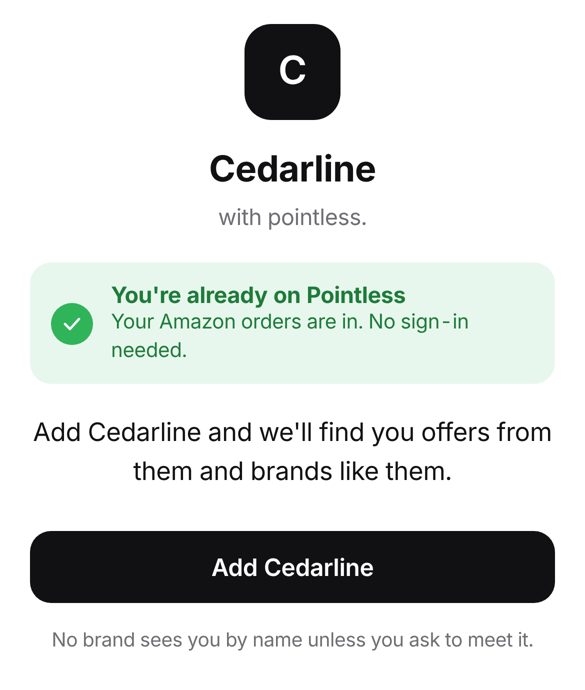
- An invite link on the phone you use for Pointless says you're already on Pointless and shows an Add button.
- One tap adds the brand. There's no Amazon sign-in and no code.
- On a new phone, Already on Pointless? Sign in brings you back to the invite with the same one-tap button.
- The brand still sees a count, never your name.
November 3, 2026
Your orders feel calmer
For shoppers
The Orders page is now a simple list with day labels, and every order shows up exactly once.
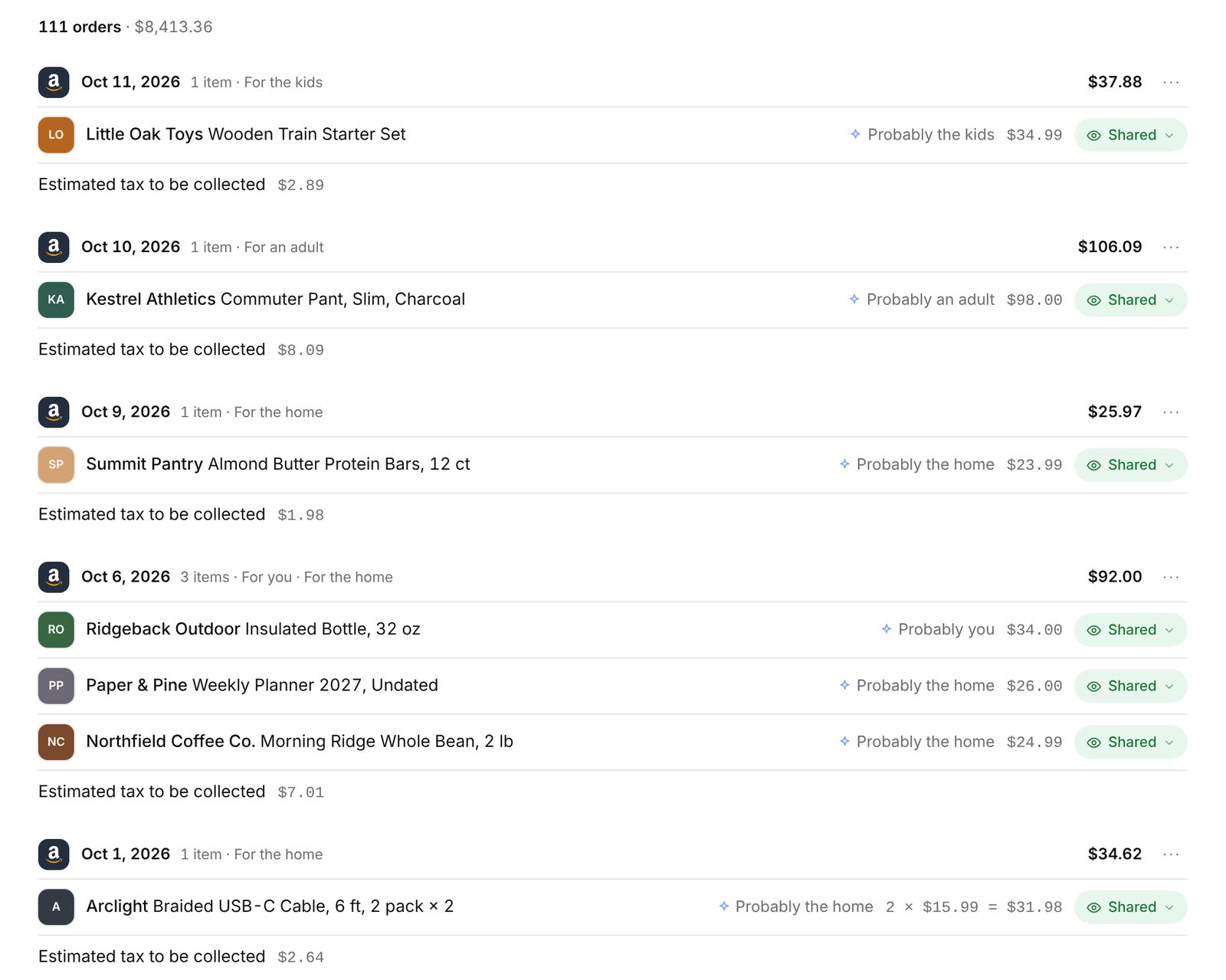
- Orders read as one calm list grouped by day, instead of a box per order.
- Each Amazon order shows once, even when two of your reads overlap.
- Pick how many rows you see on a page.
- Filter orders by the person they were for, using their name.
- Cancelled orders are gone from every list, count and total.
A new Home
For shoppers
Home now has one "Your shopping DNA" section, with "Where else do you shop?" at the bottom.
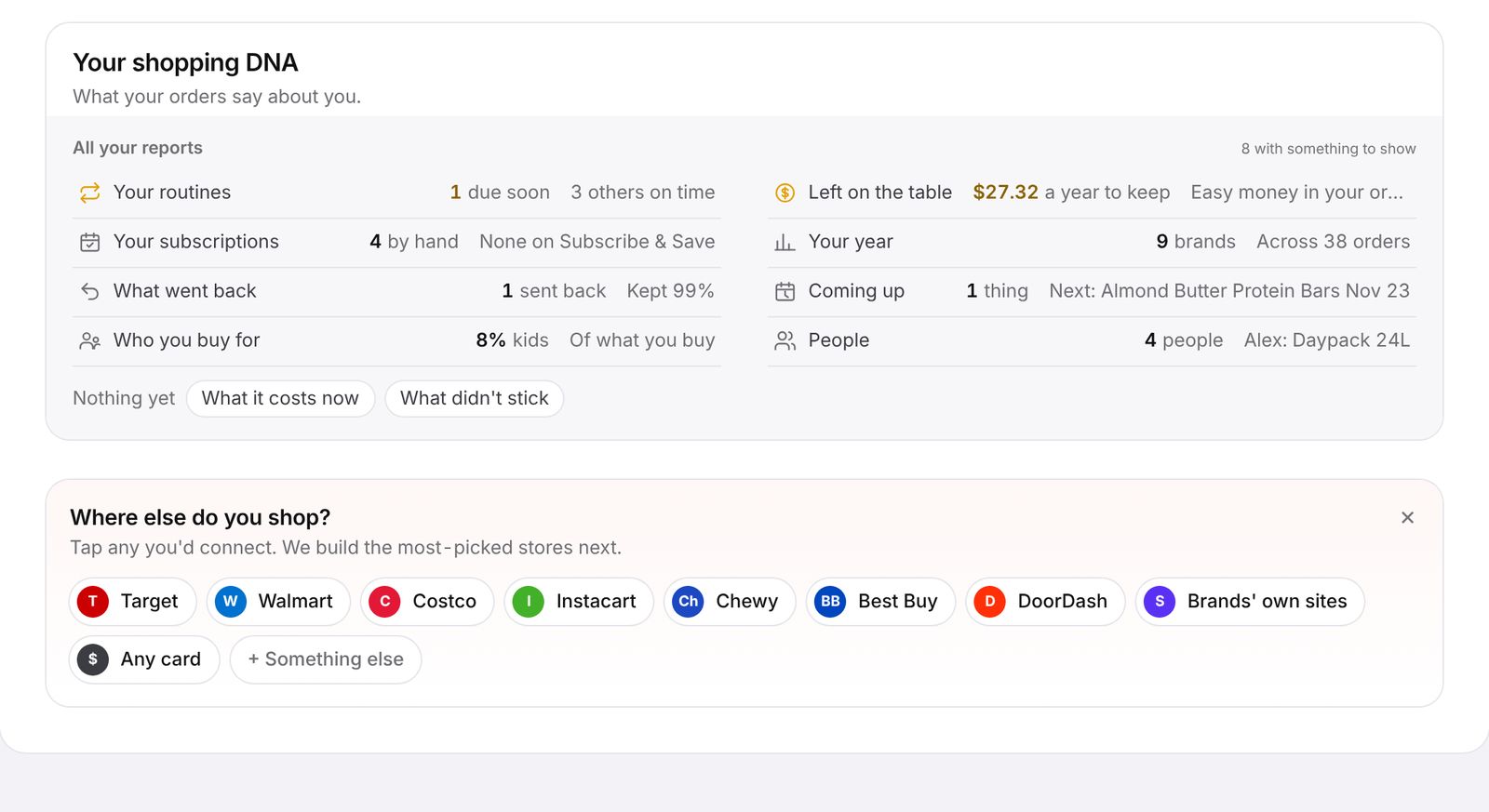
- Your findings and reports live together in "Your shopping DNA".
- "Where else do you shop?" moved to the bottom of the page.
- Tap any count to see the orders behind it, then open them on Amazon.
- The sidebar stays put on wide windows, in the app and the brand console, and the main column uses the extra room.
Subscriptions and routines you can trust
For shoppers
Cancelled Subscribe & Save items stop showing as due, and the Subscriptions page shows how to start one.
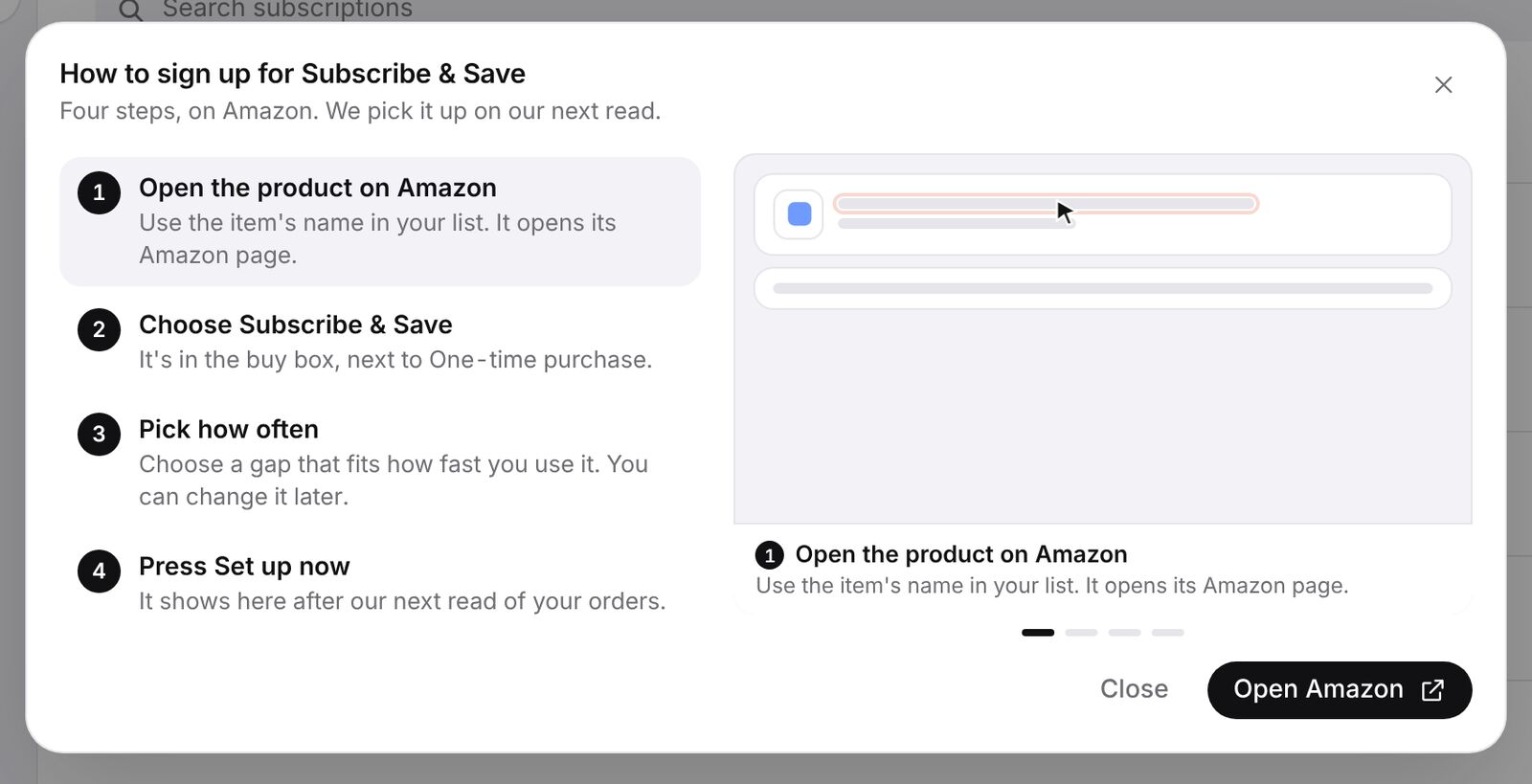
- Cancelled subscriptions drop off after a refresh, and no longer show on Coming up or Home.
- Subscriptions link straight to the item on Amazon.
- The Subscriptions page explains how to start a Subscribe & Save.
Fairer price comparisons
For shoppers
Your inflation no longer mixes different sizes of the same product into one price.
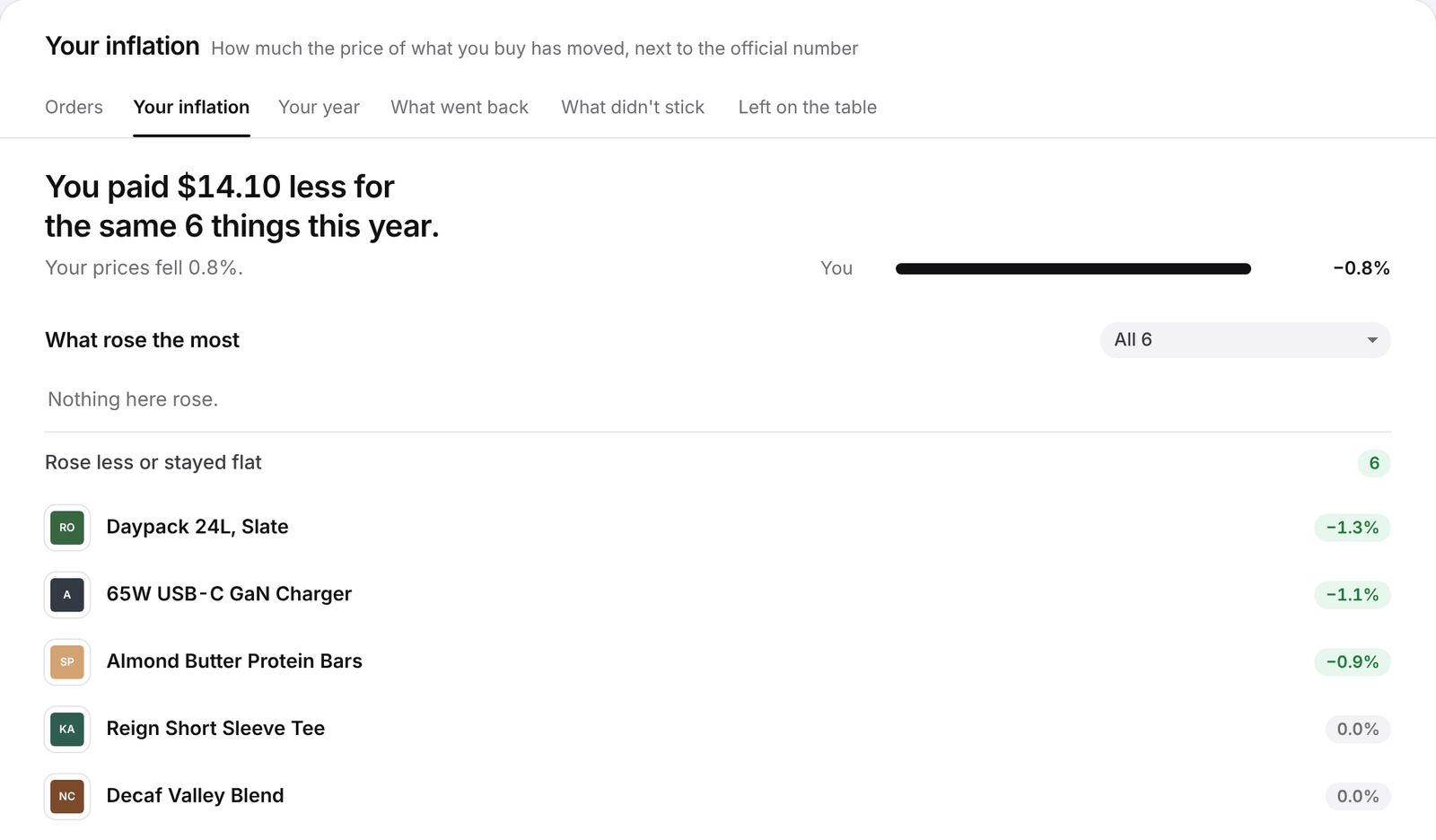
- A 90-count and a 30-count are never compared as one price.
- A single buy far off a product's usual price is treated as a different size and left out.
- Brand story shows how much you spent with each brand, and you can sort it.
AI assistants start where you are
For shoppers
When you connect an assistant like Muse, it opens with your month and a few good next questions.
- Assistants open with your month card and a short list of next questions.
- In the first week of a month, the card shows last month instead of "$0 so far".
- Setting up Muse reads as a plain message, not code.
Brand console and demo
For brands
Every page of the demo brand console now has sample data to explore, and a few rough edges are smoothed out.
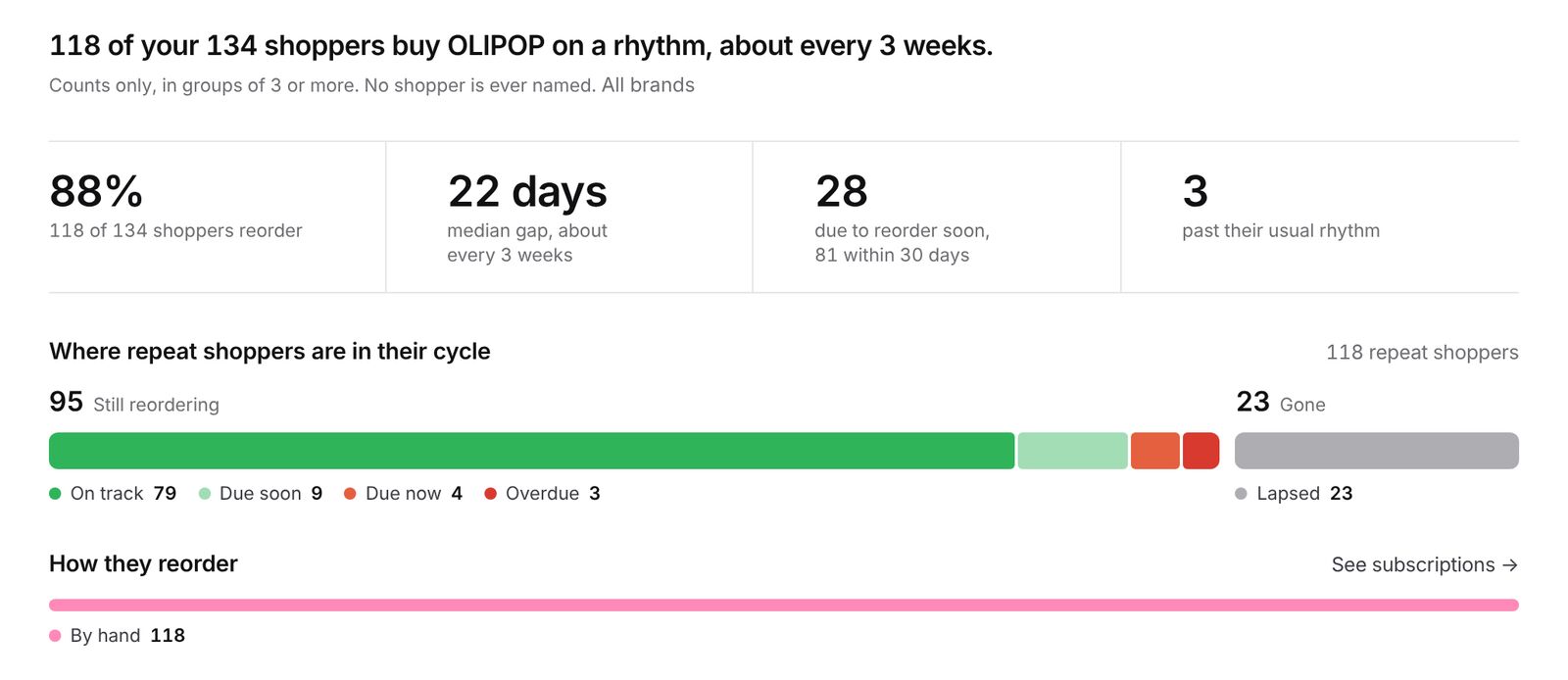
- Every brand console page on the demo shows sample data.
- Price watch no longer shows odd amounts like "by $-9.10".
- The "By what they buy" switch on Personas works again.
- Lookalikes opens with one sentence and the tiles, not a paragraph.
- Repeat shows brands that don't have a rhythm yet as a grid of logos.
- The live shopper feed sits under the month card.
- Demo products have real product photos.
- Anyone visiting the demo can leave feedback with Option+F.
- The brand sign-up page is tidier, with labels above each field.
Amazon only, for now
For shoppers
Pointless reads your Amazon orders. Bank linking is off, so no page or report uses bank data.
- New shoppers get a one-tap "How did you hear about Pointless?" while their orders load.
- Dark buttons stay readable when you hover over them.
November 2, 2026
Smoother Amazon reads
For shoppers
Reading your Amazon orders is faster and steadier, and it keeps what it has already found.
- A read can't freeze any more, and it keeps the orders it already found.
- Amazon's "Continue" step can be tapped right from the connect page.
- Order prices and shipping lines read correctly on Amazon's newer order page.
- Refresh fills in only the order details that were missing.
- The Privacy tab has clearer sections and lets you choose how brands can contact you.
- You can unhide gifts you hid.
- New demo brands open in about a second, and long waits say why.